
How to Create Realistic Images Using an AI Image Generator from Text
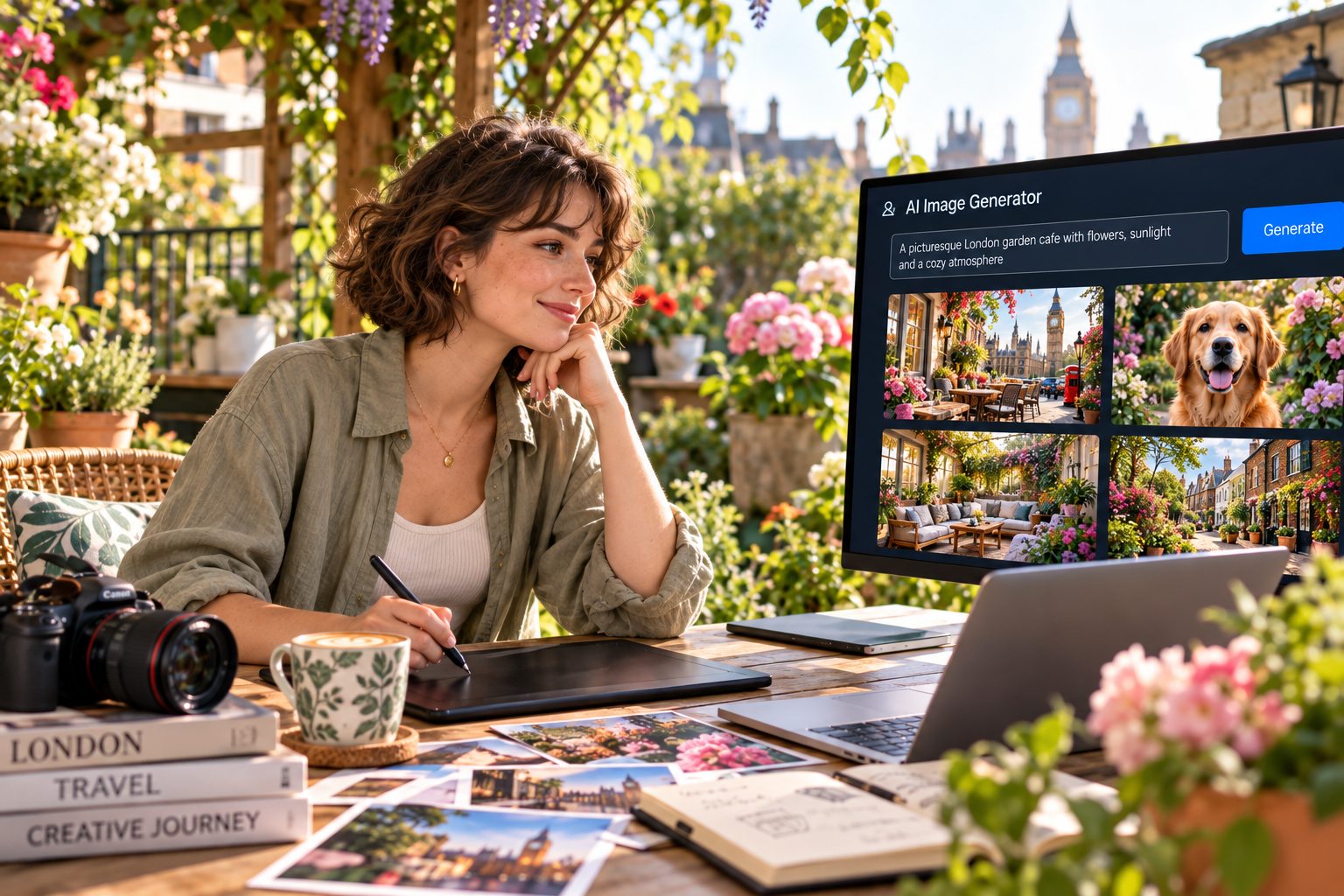
A fashion photographer has ten minutes before a campaign pitch. The dream location does not exist, the model is unavailable, and the sunset has already clocked out. Her solution? A carefully written prompt describing soft late-afternoon light, natural skin texture, a linen jacket, and a quiet rooftop. Moments later, a realistic AI image generator turns those details into a convincing visual. And this is hardly a niche creative experiment anymore. According to MarketsandMarkets, the AI image generator market is projected to grow from USD 8.7 billion in 2024 to USD 60.8 billion by 2030, at a 38.2% CAGR. As realistic AI images become part of everyday creative workflows, knowing how to write a strong text to realistic image prompt is becoming increasingly valuable. The difference between “AI-looking” and believable often comes down to a few precise visual choices.
Define a Physically Believable Scene
A realistic AI image generator needs more than the word “realistic.” If your prompt says “a woman in a café,” the model must invent lighting, camera angle, clothing, expression, background, and mood.
Give it boundaries instead. Mention the café style, time of day, subject position, materials, and atmosphere. Those details help realistic AI images feel grounded because the pieces begin behaving as though they share the same physical space.
A useful text to realistic image prompt answers five things:
- What is the subject?
- Where is it?
- What is the light source?
- How is the scene framed?
- Which textures make it believable?
Describe How Materials Behave
Reality follows tiny visual rules. Glass reflects, fabric folds, metal catches highlights, and skin has texture. A realistic AI image generator performs better when your prompt describes those relationships instead of relying on flattering adjectives.
A strong text to realistic image prompt explains what realism should look like. “Amazing,” “stunning,” and “perfect” sound enthusiastic, but enthusiasm has never been a lighting setup.
Give Your Lighting a Clear Direction
Lighting can rescue an ordinary prompt or expose a weak one. Real photographs contain direction, shadow, reflected light, uneven brightness, and gradual falloff.
When using a realistic AI image generator, describe where light comes from and how it behaves. “Soft daylight entering from a window on the left” gives more guidance than “professional lighting.”
For realistic AI images, simple lighting instructions often beat a pile of cinematic buzzwords. To compare moods quickly, create a version in Textpixora, change one lighting detail, and refine the result rather than rebuilding the whole scene.
Use Camera Cues to Guide Composition
Camera terminology can strengthen a text to realistic image prompt when it controls framing and depth. You do not need seventeen lens specifications.
Use cues such as “eye-level portrait,” “close-up,” “wide interior shot,” “shallow depth of field,” or “natural 50mm perspective.” A realistic AI image generator can use those directions to create a composition that feels photographed rather than assembled.
Add Natural Texture and Imperfections
Perfectly smooth skin, spotless streets, identical leaves, and flawless surfaces can make generated scenes feel artificial.
For realistic AI images, add subtle details such as fabric creases, visible pores, flyaway hair, tiny scratches, uneven stone, or fingerprints on glass. A thoughtful text to realistic image description uses imperfections selectively; one or two believable details are usually enough.
Texture also gives light something to interact with. Highlights and shadows across a surface provide evidence that helps an object feel physical instead of computer-polished.
Check Anatomy, Scale, and Perspective
Hands, eyes, teeth, jewelry, and overlapping limbs can expose weak realism quickly. Busy scenes may also produce strange object sizes or mismatched perspective.
Simplify first. Ask for a clear pose, natural hand placement, believable clothing, and an uncomplicated background. A realistic AI image generator has fewer chances to invent awkward relationships when the scene has a clear hierarchy.
For products or environments, define foreground, middle ground, background, object scale, and viewing angle. These spatial cues help realistic AI images avoid the floating, flattened look that breaks the illusion.
Build a Realistic Prompt in Layers
Instead of writing one giant prompt, build your text to realistic image direction in layers:
- Set the subject, environment, and action.
- Add lighting, framing, perspective, and depth of field.
- Add materials, texture, reflections, weather, or imperfections.
- Remove conflicting instructions. A realistic AI image generator cannot make a scene minimal, crowded, bright, dark, vintage, futuristic, soft, and dramatic simultaneously. Even AI appreciates a coherent brief.
This process makes revisions easier because each adjustment has a clear purpose.
Generate, Inspect, and Refine
Realism often appears through correction, not one miraculous first result. Generate, inspect, adjust, and repeat.
Textpixora fits that loop because you can create AI visuals, edit them, customize details, and keep refining as the concept develops. Change one variable at a time in your text to realistic image workflow: lighting first, framing next, texture after that.
That approach helps a realistic AI image generator respond more predictably and shows which instruction improved the output. It also saves you from rewriting a useful prompt because one shadow decided to become theatrical. Small changes can shift everything.
Bring Your Photorealistic Concept Together
Photorealistic results come from believable visual decisions. Define the environment, light source, camera perspective, texture, anatomy, and scale instead of repeatedly typing “realistic.” A realistic AI image generator becomes more useful when the prompt reads like focused creative direction rather than impressive-sounding adjectives.
Textpixora keeps that process simple by helping you create, edit, customize, and refine visuals without interrupting your flow. If you want to test how far structured direction can go, use Textpixora for your next text to realistic image concept and shape it into realistic AI images that feel considered, convincing, and ready to use. The strongest realistic AI image generator workflow is usually the one you can refine without friction.
Frequently Asked Questions
How can I make AI-generated images look more realistic?
Use specific descriptions for lighting, texture, perspective, composition, materials, and natural imperfections. Keep the scene physically believable and avoid conflicting visual instructions.
What prompts work best for photorealistic images?
Prompts describing the subject, environment, lighting, camera perspective, depth of field, texture, and mood clearly tend to create stronger photorealistic results. Concrete visual language works better than broad praise.
Why do some AI images look unnatural?
AI images can look unnatural when anatomy, lighting, reflections, scale, perspective, or textures are inconsistent. Overly smooth surfaces, impossible shadows, and crowded prompts also weaken realism.
Why is lighting important for realistic AI images?
Lighting creates depth, form, texture, and believable shadows. Describing the source, direction, softness, color, and intensity helps the scene follow visual patterns associated with real photography.
What details should I add to a realistic image prompt?
Add materials, surface or skin texture, lighting direction, camera angle, lens perspective, depth of field, reflections, shadows, environmental context, and subtle imperfections that naturally belong in the scene.